 ApplyDesk
Discord onboarding often breaks at the point where a member needs a decision.
A welcome channel can explain the rules. Discord’s native Community Onboarding can help members choose channels and roles. A bot can send messages. However, staff applications, whitelists, partnerships, and trial roles require more than a first welcome.
They require a complete process:
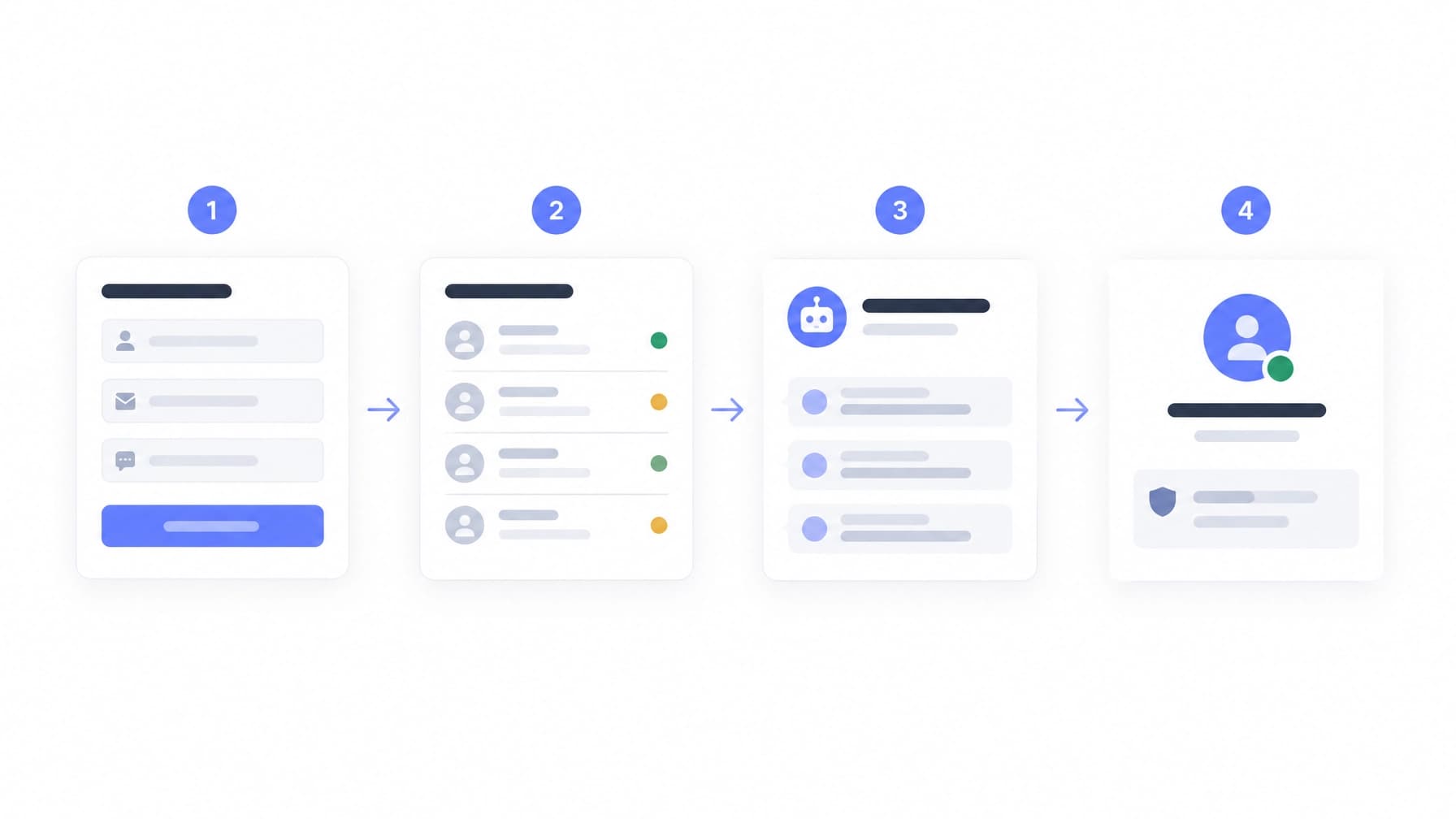
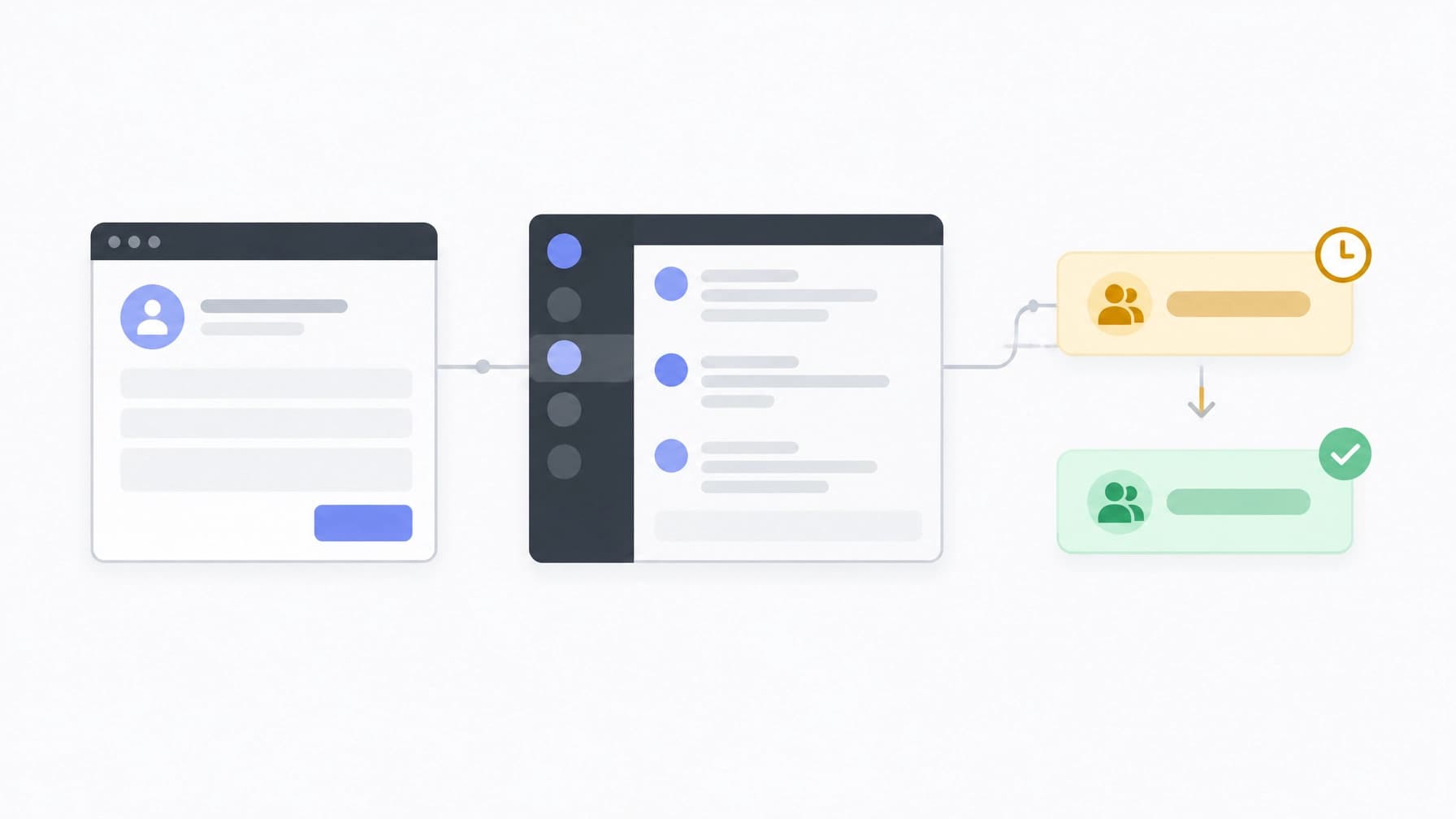
Application form → review queue → decision → Discord role assignment → probation or trial workflow
This framework gives community owners, gaming servers, and guild administrators a consistent way to move applicants through that process. It also shows where a Discord onboarding tool such as ApplyDesk fits alongside Discord’s built-in onboarding features.
Why onboarding needs a complete workflow
Discord’s native onboarding is useful for helping new members understand a server. Discord describes Community Onboarding as a way to use default channels, questions, and linked roles to guide members after they join.
That process is different from operational onboarding for people who need approval before receiving access.
Examples include:
- A moderator applying for staff permissions
- A Minecraft player requesting whitelist access
- A Roblox or RP player applying to join a faction
- A creator applying to a partner programme
- A guild member entering a trial period
- A community member requesting access to a private project channel
These applicants need a form that collects relevant information, checks that the submission is suitable, and gives staff a reliable place to make a decision. The decision must then reach Discord without manual copying.
ApplyDesk connects those stages. The form collects the application, the dashboard holds the review queue, and the Discord bot completes the action after approval.
Step 1: Define the destination role
Start with the outcome, not the form.
Every application type should have a clear role or access state. For example:
Trial ModeratorModeratorWhitelistedPartnerGuild MemberProbation
The role should describe what the applicant receives after approval. Avoid giving full permissions immediately when the applicant still needs to demonstrate suitability.
A trial or probation role can provide limited access while your staff monitor performance. After the trial period, staff can promote the member to the standard role. If the trial does not work out, the limited role can be removed without reversing a larger permission change.
Check the Discord role hierarchy before connecting automation. The ApplyDesk Discord application bot needs permission to assign the configured role, and its highest role must sit above the roles it manages.
Step 2: Build an application that collects usable information
A good application is not the longest application. It collects the information staff need to make a decision and avoids questions that do not affect the outcome.
Begin with basic identity and eligibility checks:
- Discord account and user ID
- Current server membership
- Minimum Discord account age
- Relevant game, platform, or guild information
- Availability and timezone, where relevant
Then add questions for the specific role.
A staff application may ask about moderation experience, judgement scenarios, availability, and how the applicant would handle a disagreement. A whitelist application may focus on rules knowledge, character details, prior bans, or roleplay expectations. A partnership form may ask about audience, activity, and the proposed arrangement.
ApplyDesk forms can include Discord login, account-age requirements, server-member checks, Turnstile captcha, and IP limits. These checks reduce low-quality submissions before staff spend time reviewing them.
They also make the application process more consistent. A reviewer should not need to identify basic eligibility manually from every submission.
You can start from a Discord staff application template, use a whitelist template, or create a form for your own workflow. Forms can run on an ApplyDesk subdomain such as name.applydesk.net or, where configured, a custom domain.
Step 3: Keep staff access separate from applicant access
Staff should not need a shared password for the review system.
With ApplyDesk, staff sign in through Discord OAuth. This allows the platform to identify the reviewer through their Discord account without creating another password for the team to store or share.
This distinction matters:
- Applicants submit through the public application page.
- Reviewers access the dashboard through their Discord account.
- Server administrators decide who receives staff access.
- ApplyDesk records the relevant review actions in the dashboard.
You can invite staff by Discord ID and limit access according to the roles and configuration available for your workspace. Where audit logs are enabled, they provide a record of changes and review activity.
This creates a clearer ownership model than a shared spreadsheet login. It also reduces the risk of former staff retaining access to an account used by the whole team.
Step 4: Move every submission into a review queue
A form only collects information. The review queue is where the application becomes an administrative process.
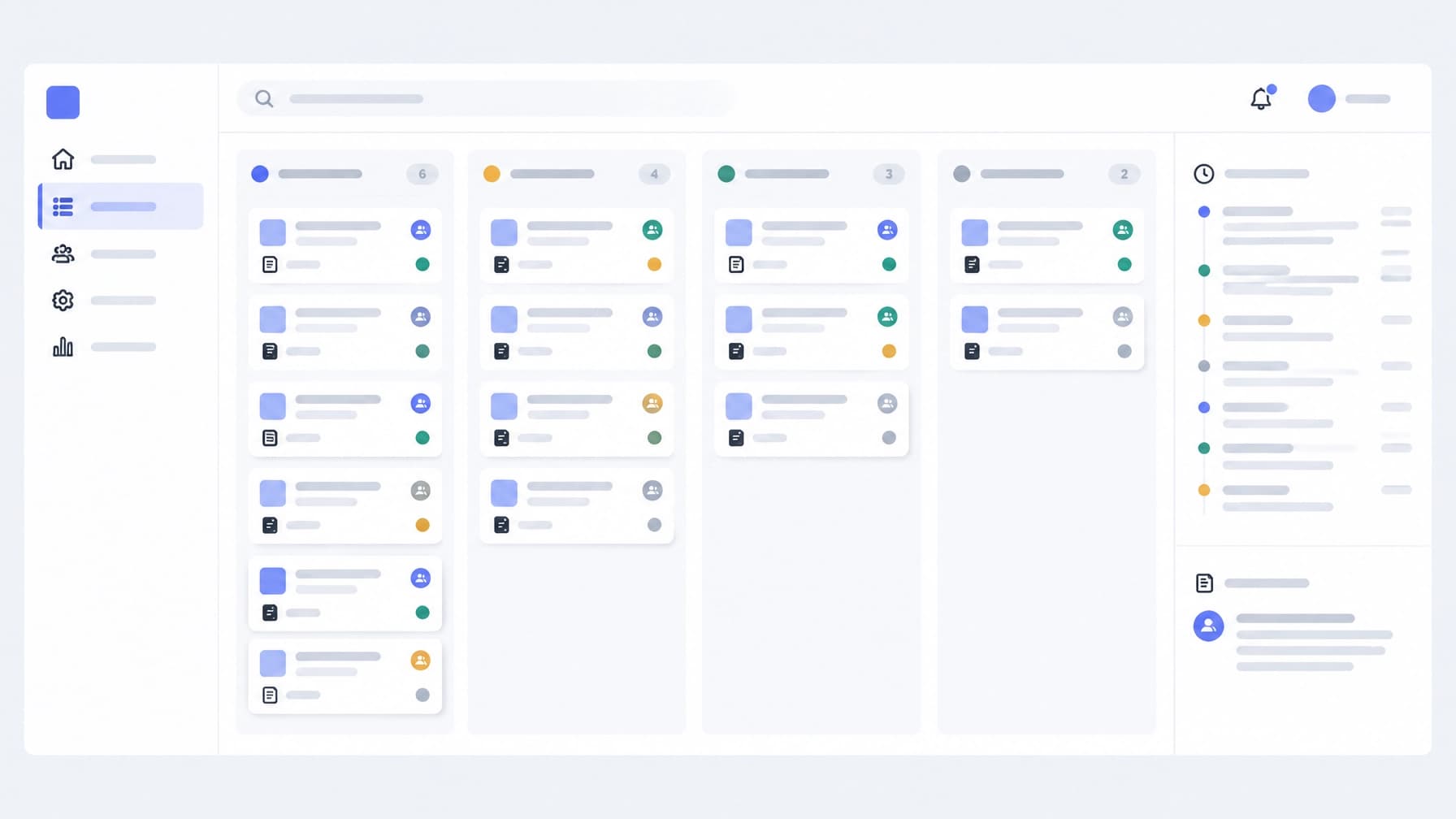
ApplyDesk uses a Kanban-style queue for application management. Staff can move applications through stages such as:
- Pending
- In review
- Hold
- Approved
- Rejected
The exact stages depend on how your community operates. A guild may need an interview stage. A roleplay server may need an additional character review. A staff team may use a second approval for senior positions.
The queue keeps applications out of a general Discord channel and prevents decisions from being lost in message history. Reviewers can search by name or Discord ID, add notes, assign applications to staff members, and export records as CSV where needed.
Use reviewer assignments when several staff members handle applications. This reduces duplicated work and makes responsibility visible. Use notes to record the reason for a decision rather than relying on private messages or memory.
Step 5: Add a consistent decision process
Before staff approve an application, define what approval means.
A simple scorecard can assess:
- Eligibility
- Knowledge of server rules
- Communication
- Judgement
- Availability
- Previous experience
- Suitability for the specific role
Not every category needs a numerical score. The important point is that reviewers should assess the same factors for comparable applications.
Use a hold state when more information is needed. This is better than rejecting an application because one answer is incomplete, and it avoids leaving the applicant in an untracked private conversation.
For higher-risk roles, add a second approval stage. For example, a senior moderator application may require an initial reviewer and an administrator. The application remains in the queue until both people complete their part of the process.
Where audit logs are available, they help show who reviewed an application and when the decision changed. This is useful when staff responsibilities change or an applicant asks about the status of a submission.
Step 6: Use the Discord bot to complete the action
The Discord bot should handle the follow-through, not replace the review process.
ApplyDesk’s bot can:
- Notify a staff channel when a new application arrives
- Respond to
/apply - Show queue information with
/queue - Let applicants check progress with
/status - Provide an invite or application link with
/invite - Explain available commands with
/help - Send decision DMs using configured templates
- Assign roles after approval
This is the point where a Discord role assignment bot becomes useful. Staff make the decision in the review dashboard, then the bot applies the configured Discord action.
That separation is important. The bot should not assign a staff or whitelist role because somebody clicked a button in a busy channel. It should assign the role after the application reaches an approved state.
Decision messages should state the outcome clearly. An approval DM can identify the role assigned and explain the next step. A rejection DM can use a neutral template and direct the applicant to the correct reapplication policy, if one exists.
The applicant should not need to repeatedly ask staff whether a decision has been made.
Step 7: Apply a trial or probation role
A probationary role creates a controlled transition between approval and full access.
A common workflow is:
- Staff approve the application.
- The bot assigns the trial or probation role.
- The applicant receives a Discord decision DM.
- Staff monitor activity during the defined period.
- Staff promote the member, extend the trial, or remove the role.
For a Minecraft server, the trial role might grant whitelist access but not build permissions. For a moderator team, it might reveal training channels without granting full moderation tools. For an esports team or guild, it might provide access to internal planning areas while the applicant completes a trial period.
Set expectations before assigning the role. State the trial length, responsibilities, review point, and possible outcomes. The process should not depend on an applicant guessing what probation means.
Step 8: Measure where the process stops
A complete workflow makes delays easier to identify.
Track practical stages such as:
- Applications started
- Applications completed
- Applications rejected by eligibility checks
- Applications awaiting review
- Average review time
- Approved applications
- Trial roles assigned
- Trials completed
- Members promoted or removed
If many people start but do not complete the form, reduce the number of required questions or clarify the instructions. If applications remain in review, assign them to specific staff members or add a review schedule. If approved applicants do not receive the right role, check the bot permissions and role hierarchy.
Discord’s own onboarding guidance recommends keeping the first experience clear and focused. Apply the same principle to application workflows: each stage should have one purpose, one owner, and one expected outcome.
The full ApplyDesk onboarding framework
The complete process can be configured as:
- Publish a branded application form.
- Require Discord login or eligibility checks where appropriate.
- Block or limit submissions using account age, member status, Turnstile, and IP settings.
- Notify staff through Discord when an application arrives.
- Review submissions in the Kanban queue.
- Add notes, assign reviewers, and use additional approval stages where needed.
- Approve, reject, or place the application on hold.
- Send the applicant a decision DM.
- Assign the approved role through the Discord bot.
- Use a trial or probation role before granting full access.
- Record and review the outcome.
This is the difference between using a form and operating an onboarding system. A form collects answers. A complete system controls the movement from applicant to approved member.
Create a Discord application system with ApplyDesk, or start with the Discord application bot. ApplyDesk is practical information about application management software, not legal advice. Features and controls may depend on your plan and configuration.
Frequently asked questions
Is ApplyDesk a Discord onboarding tool?
ApplyDesk supports application-based onboarding for staff, whitelist, partnership, creator, gaming, and guild workflows. Discord’s native Community Onboarding remains useful for helping general members select channels and roles.
What does a Discord role assignment bot do?
A role assignment bot applies a configured Discord role after a defined action. With ApplyDesk, the role assignment follows a staff decision in the review dashboard rather than an unverified button click.
Can applicants check their status?
Yes. The ApplyDesk bot supports the /status command for configured application workflows. Applicants can also receive decision messages through Discord DMs.
Can we use trial roles?
Yes. Trial or probation roles can be used where the plan and configuration support them. They provide limited access before staff promote the member to a full role.
Does staff access require another password?
No. Staff can sign in through Discord OAuth instead of creating a separate ApplyDesk password. Server administrators still control who receives review access.
ApplyDesk updates its application, dashboard, and bot features as the service changes. Check the support page for current configuration details.